A Bookkeeping Plugin for ChatGPT That Works in Real Books
October 17, 2026By Ryland BeardChatGPTAI bookkeepingplugins
Yes, there is a bookkeeping plugin for ChatGPT, and it works in a real ledger. Switchbooks is live in the ChatGPT plugin directory: install it, sign in, and the ChatGPT you already use has a real set of books to work in, with every account, every category, every rule, and the history behind them.
I ran a 40-person bookkeeping firm before building Switchbooks, and for most of the last year the honest answer to "can ChatGPT do my bookkeeping" was no, not really. It could categorize a pasted statement. It could not post anything, see both sides of a transfer, reconcile, or remember what you decided last month. The plugin changes that, because it gives ChatGPT the two things it was missing: tools that act on a ledger, and a database that holds the result.
Here is what it does, how to set it up, and where the limits are.
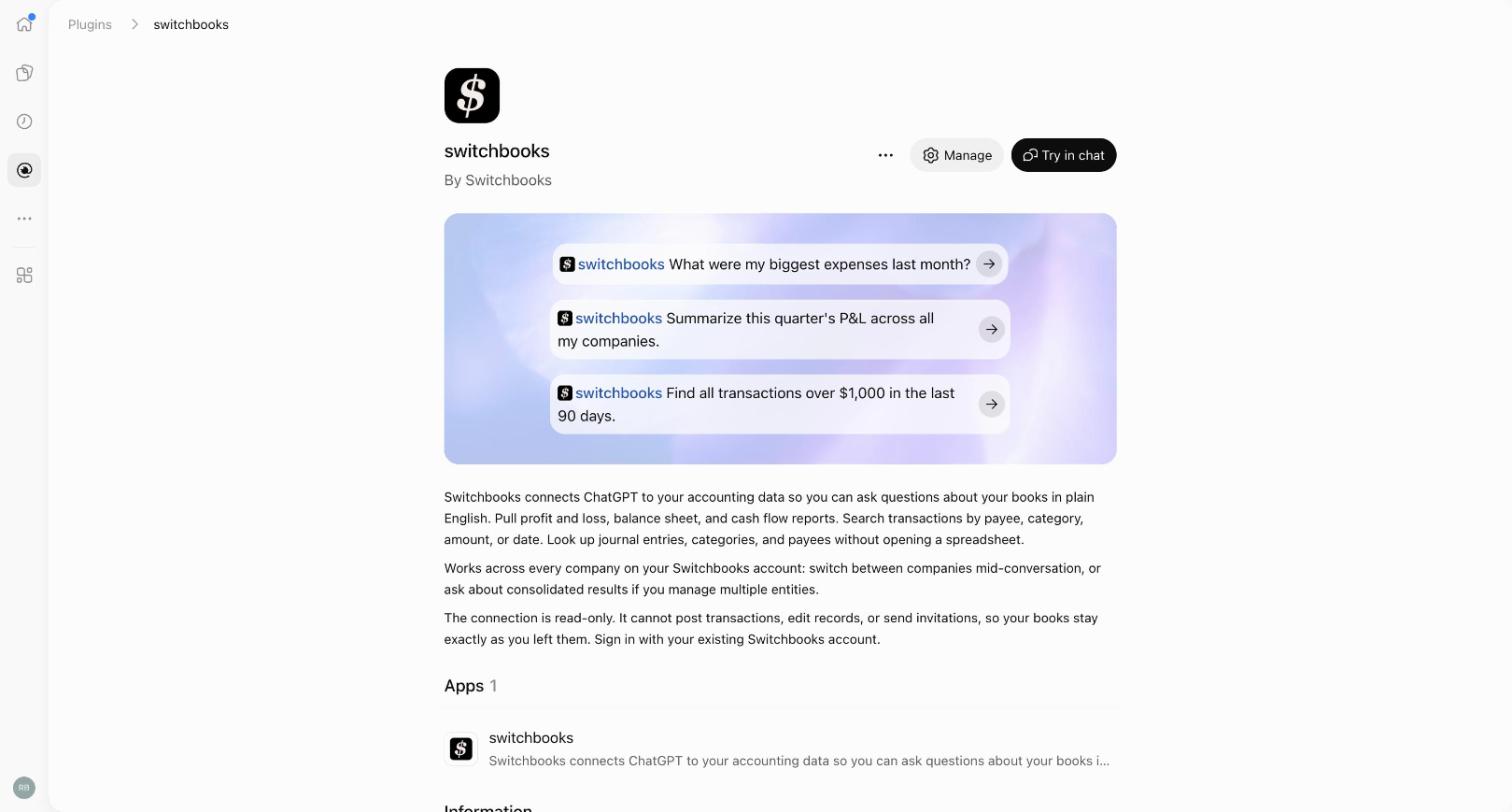
What the ChatGPT bookkeeping plugin can do
Connected read-only, ChatGPT can:
- Search transactions in To Review or posted, by description, amount, date, account or payee.
- Run a profit and loss, balance sheet, cash flow, forecast or trial balance for any dates, and open the entries behind any number.
- List your categories, payees, rules, accounts and team, and tell you what is reconciled through when.
- Read stored files such as receipts and statements.
Tick Allow bookkeeping changes when you connect and it can also:
- Categorize, post and split the rows waiting in To Review.
- Match transfers between your accounts, so a card payment is not also an expense.
- Book and edit journal entries.
- Create, rename and merge categories and payees, and make rules, including auto-post rules.
- Reconcile an account to its statement from a preview, and finish it when you say yes.
- Attach and rename files, and update a transaction's details.
- Make a new company from its name and what it does.
- Tell you what it changed, and undo a change you name.
A few things stay in the Switchbooks app when you work from ChatGPT: connecting a bank, importing files, and the request link your accountant sends you for questions and missing statements. Nothing connected to Switchbooks can sign in to your bank, move money, invite or remove people, share a report, or change billing. Those are yours. The complete tool list is on the AI assistants page.
How to connect ChatGPT to your accounting software
- Open Switchbooks in the ChatGPT plugin directory and click Install plugin. You can also open Plugins in the ChatGPT sidebar and search for Switchbooks.
- Sign in to Switchbooks, or create an account right there, and look at what the connection may do. Tick Allow bookkeeping changes if ChatGPT may post, edit and reconcile. Leave it unticked for a connection that can only read. Click Allow.
- Back in ChatGPT, start a chat and type @switchbooks with your question, or pick one of the Try in chat prompts on the listing. Say "List my Switchbooks companies," then "Use [company name]," and you are working.
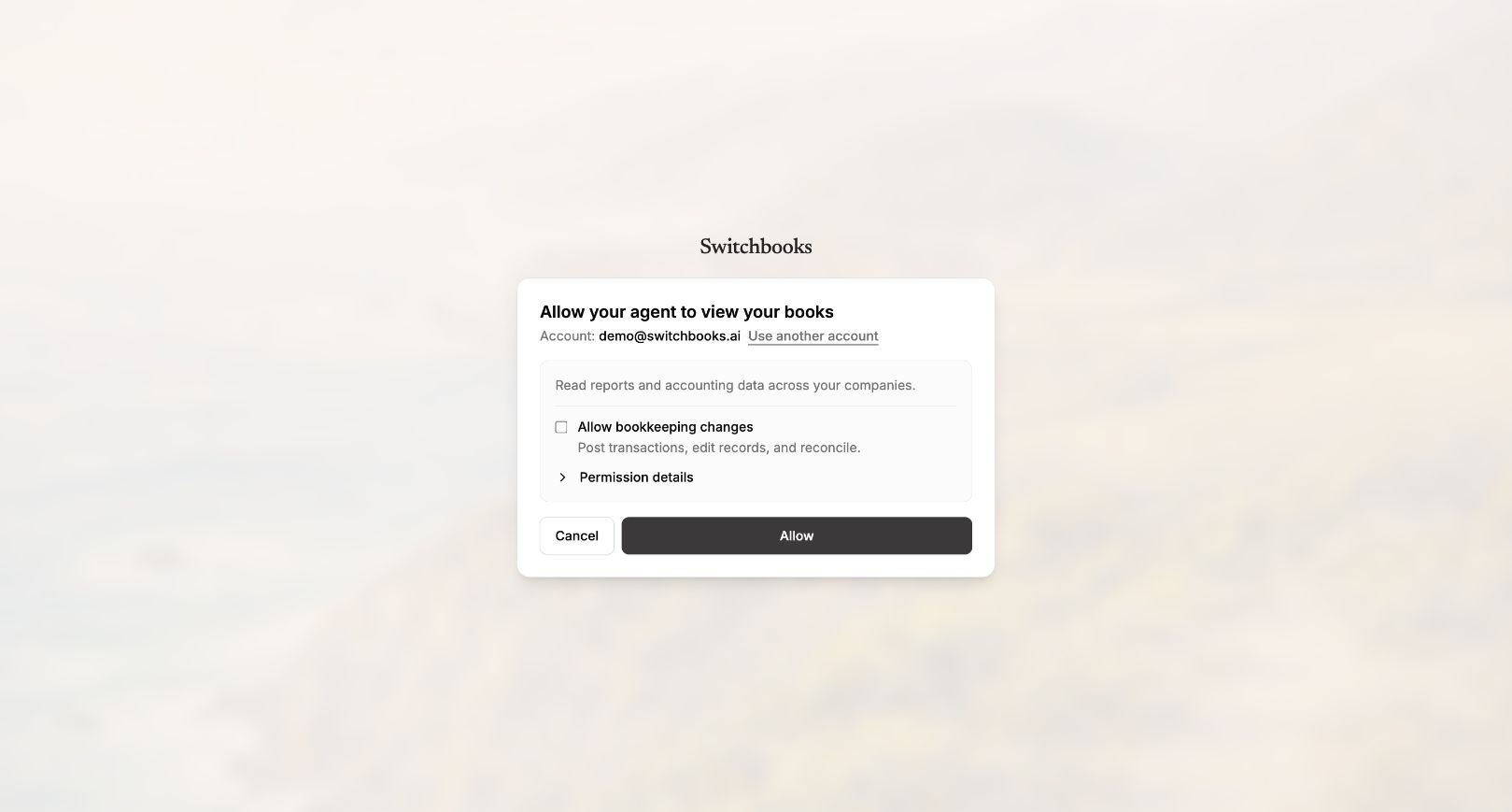
If you are new to Switchbooks, create the account during step two, then connect your bank in the app. That is where the transactions come from. If you have no company yet and you allowed changes, you can make your first one from the chat by telling ChatGPT the business name and what it does.
One note: the listing's description still describes the first version, which was read-only. The permission screen you see when connecting is current, and the Allow bookkeeping changes box is where you decide.
Things to say
Include the company and the dates you care about. Every result comes back tagged with the company it came from, which matters once you have more than one.
- "What were my biggest expenses last month?"
- "Use Harbor Goods. What is sitting in To Review?"
- "Post everything in To Review that matches a rule, and list what you were unsure about."
- "Show me last month's profit and loss."
- "Find every transaction paid to Gusto this year."
- "Reconcile Chase checking to the statement ending September 30 with a balance of 12,480.12."
- "Find all transactions over $1,000 in the last 90 days."
- "What did you change today? Undo the last one."
Brief it the way you would brief a new bookkeeper. "We are a landscaping company, the Home Depot charges are materials, the Shell charges are fuel for the trucks." It keeps that context in the books, not in the chat, so it is still there next month.
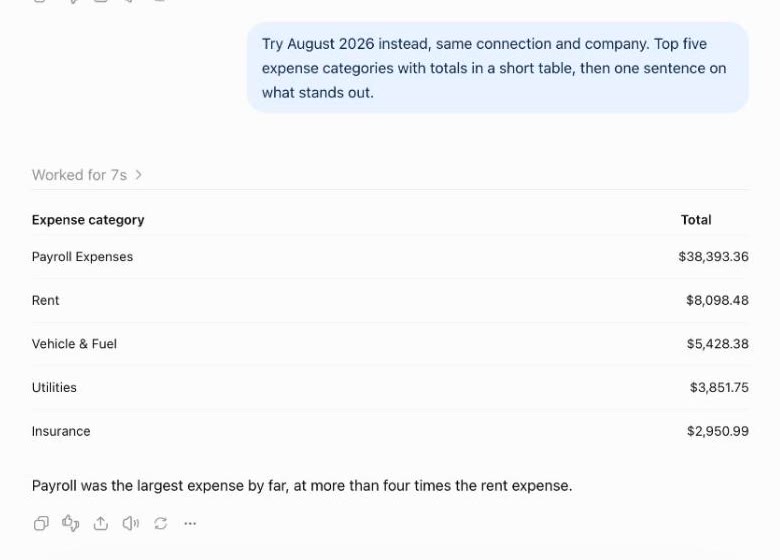
That is a real answer on a demo company, asked in ChatGPT with the plugin connected read-only. Seven seconds, no export, no spreadsheet.
How permission works
There are two layers, and both are yours.
The first is the box you tick when you connect. Unticked, ChatGPT can search and report and nothing else. Ticked, it can make the changes listed above. To change it later, remove the plugin under Settings, then Plugins, and install it again with the other setting.
The second is ChatGPT's own per-plugin permission under Settings, then Plugins. The default is called Allow low-risk tools, and you can tighten or loosen it there.
Underneath both, Switchbooks records every change a connected assistant makes. Ask "what did you change today" and you get the list in plain words. Ask it to undo one and it reverses that change through the same path a person would use. A reconciliation shows you a preview first and can be undone after it is finished. Steps that are hard to reverse, like merging two categories, wait for your yes. How data and access are protected is on the security page.
Why a plugin, and not a pasted statement
I wrote the long version in Can ChatGPT do my bookkeeping?, and the short version is transfers. Paste a checking statement into a chat and the $2,400 going out to the credit card looks like an expense. The assistant cannot see the card, so it cannot know the money just moved. Your costs double and nobody notices until tax time.
Connected to the books, ChatGPT sees the checking account and the card. It matches the two sides, nothing is counted twice, and the balance sheet balances because the ledger does. The same goes for memory: a rule you make in March still applies in April, because it lives in Switchbooks rather than in a conversation that has since scrolled away.
Several companies, one chat
If you are a bookkeeper or an accounting firm, the plugin sees every company your Switchbooks login can see. Say "Use [client name]" to switch. Every result is tagged with the company it came from, so two clients cannot get mixed up. The same login works in Claude, Cursor and Grok Bot, so a team can use whichever assistant each person prefers and the books are the same.
What it costs
Nothing extra. The plugin is free to install and the connection is included with Switchbooks, which is $25 per month per company with every feature, and a 10-day free trial.
Get started
- Create a free Switchbooks account, or create one on the plugin's sign-in page, then connect a bank in the app.
- Install Switchbooks in ChatGPT, tick Allow bookkeeping changes, and allow it.
- Type @switchbooks and ask what is sitting in To Review.
If you would rather use Claude, the Claude walkthrough covers the same setup there, and the connect tutorial has every assistant on one page. The books live in Switchbooks, not in any one chat, so you can use more than one.